Two-factor authentication (2FA)
Two-factor authentication (2FA) protects your account with a time-based one-time code (TOTP, RFC 6238) in addition to your password. When signing in, you then need the current code from your authenticator app alongside your password.
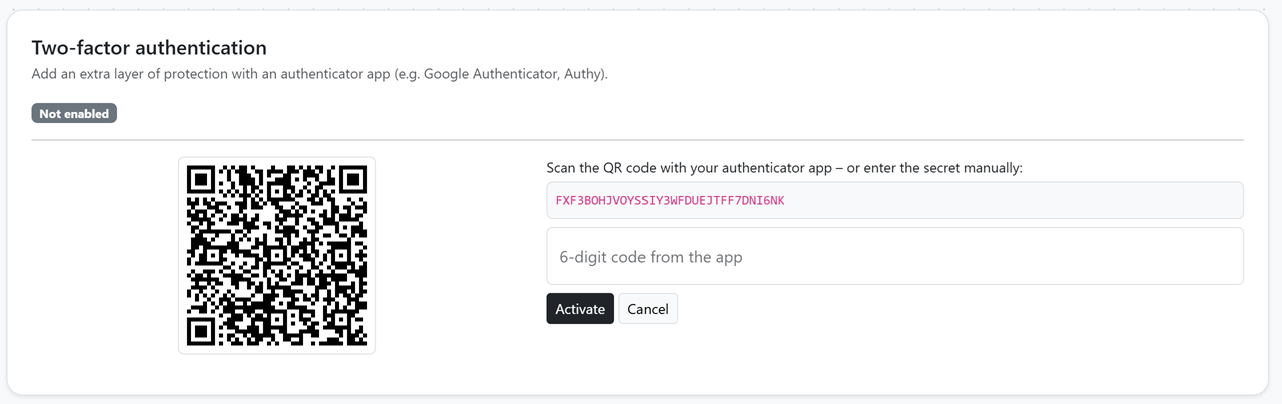
Set up
- In the Settings, click "Set up 2FA".
- Scan the displayed QR code with an authenticator app (e.g. Google Authenticator, Aegis, 2FAS) – or enter the secret manually.
- To confirm, enter the current 6-digit code from the app and click "Activate".
- Keep the backup codes shown afterwards in a safe place – they are single-use and are shown only now.
The status in the settings then changes to "Enabled".
Signing in with 2FA
After entering your password, the code prompt appears with six separate fields – one field per digit. Enter the current code from your authenticator app and confirm.
No access to the app? Use the link "No access to the app? Enter one of your backup codes." to enter one of your backup codes instead.
Backup codes & management
Your backup codes provide access if you lose your device – each code is single-use. In the settings you can create new ones via "Regenerate backup codes" or turn 2FA off again via "Disable".
2FA is optional and configurable per user. For security reasons there is no admin reset – so keep your backup codes safe.