Installation & system requirements
OSINTEAGLE SOAR is a desktop application that you install locally on your computer. You’ll find the installation files in your dashboard under “Download”.
System requirements
- Windows: Windows 10 or 11 (64-bit)
- Linux: a current 64-bit distribution (e.g. Ubuntu/Debian) – as AppImage or .deb package
- Memory: at least 4 GB recommended
- Disk: approx. 500 MB of free space plus room for your investigation data
- An active license, subscription or trial license to activate the app
Your investigation data is stored exclusively on your device – plan for additional storage depending on the volume (images, videos, documents).
Installing on Windows
- Download the Windows installer from your dashboard.
- Double-click the downloaded file and follow the installation wizard.
- If Windows shows a SmartScreen notice, choose “More info” → “Run anyway” to continue.
- After installation, you’ll find OSINTEAGLE SOAR in your Start menu.
Installing on Linux
Option A: AppImage (recommended)
- Download the .AppImage file.
- Make it executable – via right-click → Properties → “Allow executing” or in the terminal:
chmod +x OSINTEAGLE-SOAR-*.AppImage - Start it by double-clicking or in the terminal:
./OSINTEAGLE-SOAR-*.AppImage
Option B: .deb package (Debian/Ubuntu)
- Download the .deb file.
- Install it in the terminal:
sudo apt install ./osinteagle_*_amd64.deb - Then launch the app from your applications menu.
First launch & activation
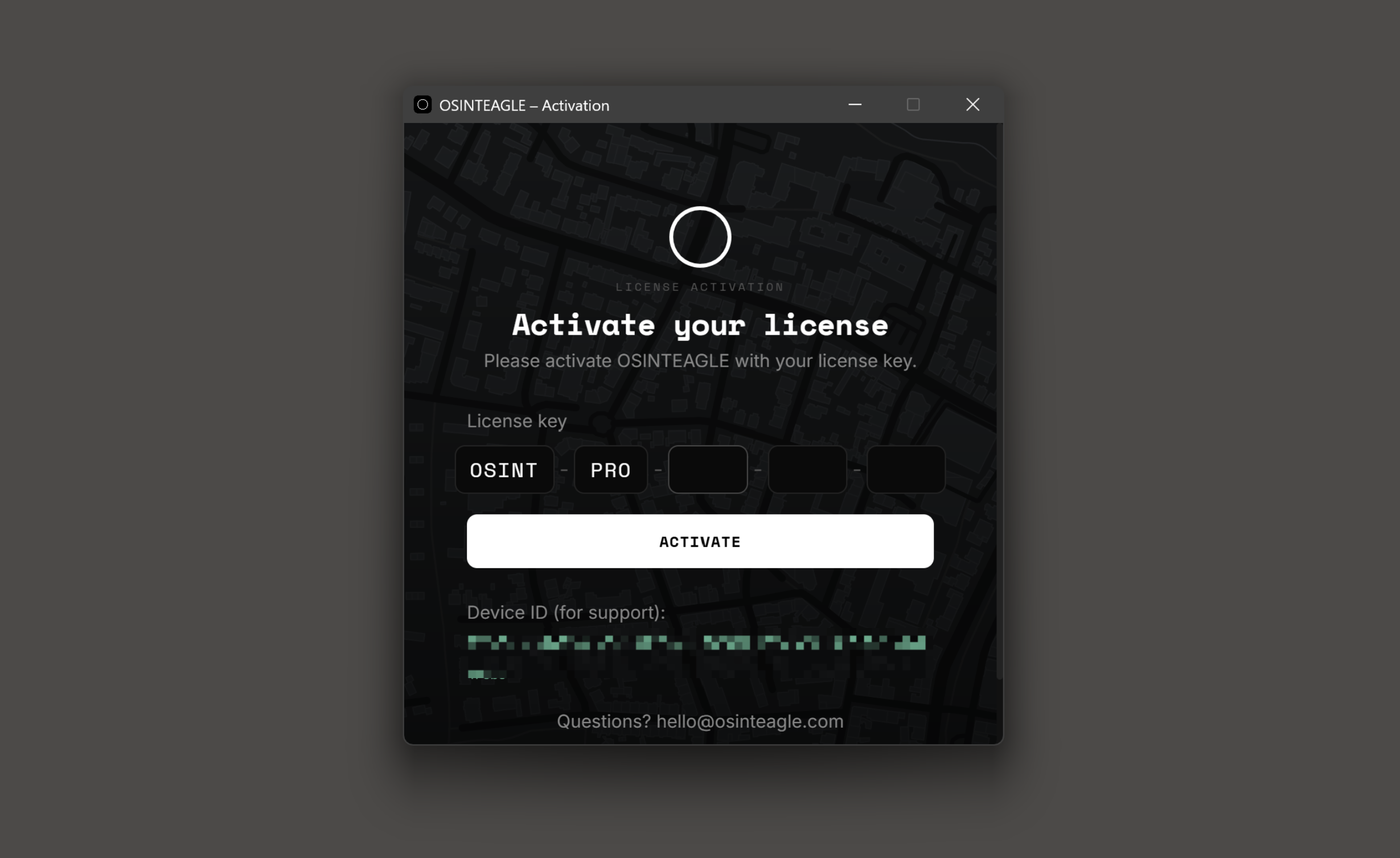
On first launch, enter your license key (you’ll find it in your dashboard). This activates the device and uses one of your seats. You’ll find details about seats and releasing devices under License & devices.
Updates
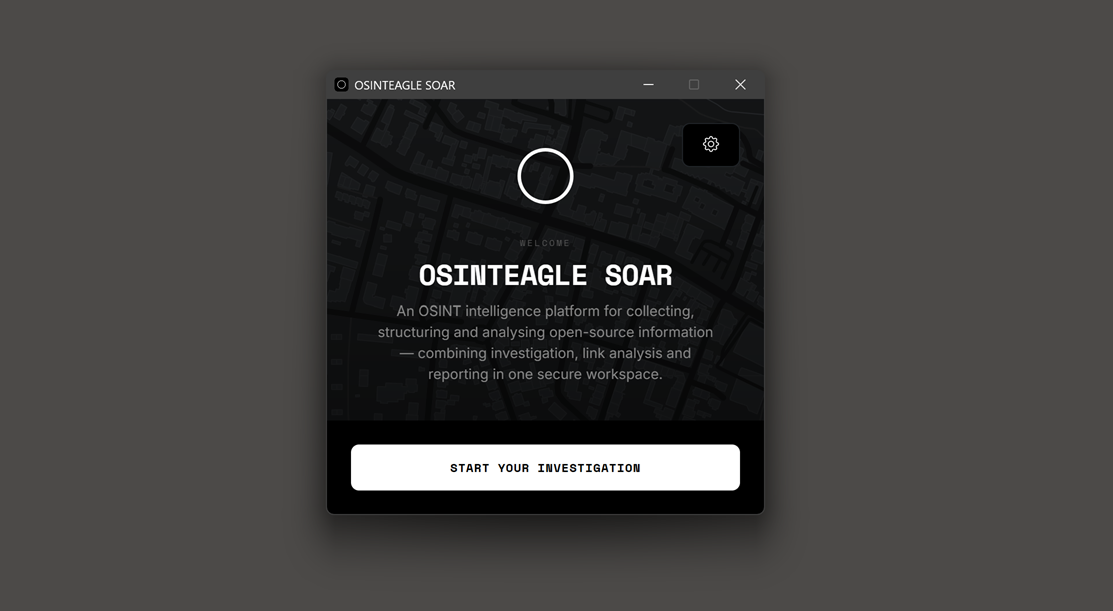
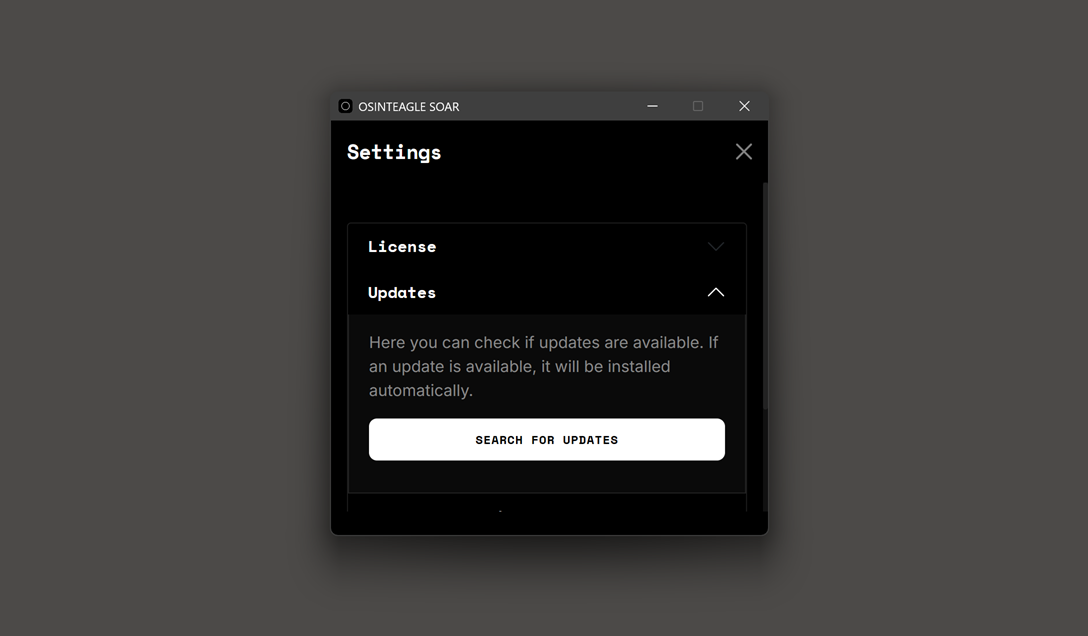
We provide new versions via the dashboard. In addition, you can check directly from the application’s start screen whether a new version is available. For an update, simply download the current installation file and install it over the existing version – your local investigation data is preserved.
Installation problems?
- Windows: If an antivirus blocks the installation, add the file to the exceptions/quarantine allow list and start the installation again.
- Linux (AppImage won’t start): Use
chmod +xto check that the file is executable, and run it from the terminal to see any error messages. - If you get stuck, contact hello@osinteagle.com.