Adding media & posts
You can attach media (photos, videos, audio, documents and data files) and posts (e.g. social-media posts) to any entity – each with a source, timestamps and an integrity hash for audit-proof reports. This article shows how to add them and prepare them for the report.
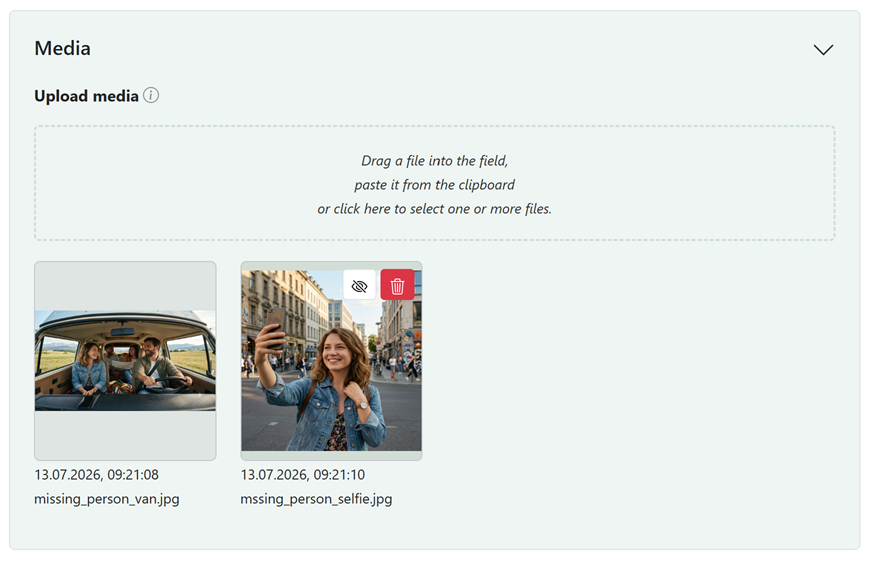
Upload media
Open an entity and go to the "Media" section. You can add files in three ways:
- drag one or more files into the field (drag & drop),
- paste an image from the clipboard,
- or click the field and select the files.
A wide range of file types is supported:
- Images – JPG, PNG, GIF, WebP, BMP
- Videos – MP4, WebM, MOV, M4V, OGG
- Audio – MP3, OGG
- Documents – PDF
- Data & text – CSV, JSON, XML, TXT, HTML, GraphML
Unsupported file extensions are rejected; each file is subject to the upload limit configured in the backend. Structured data files (e.g. CSV, JSON or GraphML) can additionally be viewed or analysed inside the app after uploading.
Media details
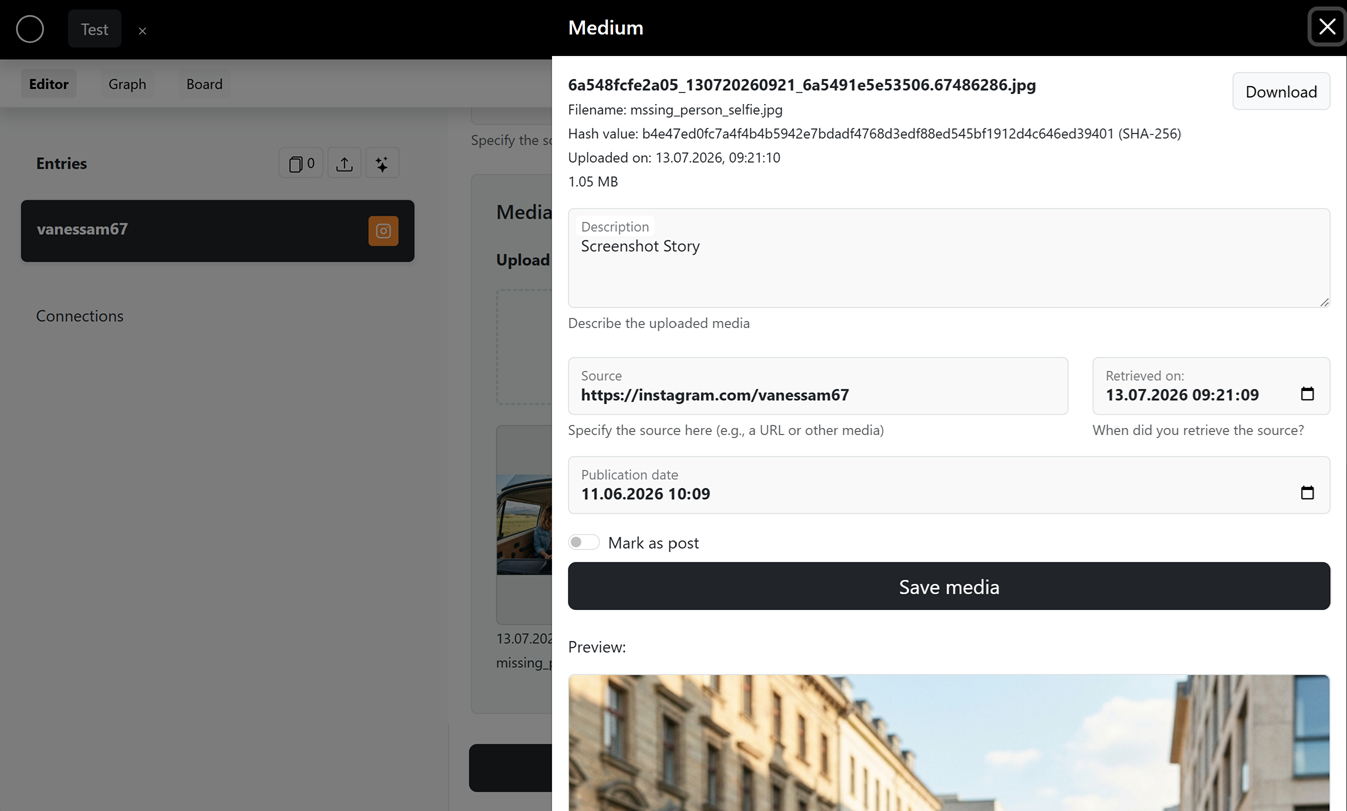
Click an uploaded item to fill in its details:
- Description – what it shows (used as the caption in the report).
- Source – where it comes from, e.g. a URL.
- Retrieved on – the date/time you accessed the source (a button sets the current timestamp).
- Publication date – when the content was published.
Then save with "Save media".
Integrity and evidence
For every item a hash value (SHA-256), the upload time and the file name are recorded automatically. These appear in the report and prove that the file is unchanged since upload – important for court-proof documentation.
Videos: thumbnail for the PDF
Videos can be played in the web report, but the PDF needs a still image. Use "Create thumbnail for PDF" to pick the right frame: jump to the desired point in the video, then click the button. The still is saved and used as the video's preview in the PDF report.
Appearance in the report
For each item you control how it appears in the report:
- Size in report – Small, Medium or Full.
- Two-column with next image – places two images side by side to save space.
- Order – media can be reordered by dragging; the order carries over to the report.
Posts
A media item can be flagged as a post – ideal for social-media content. Enable "Mark as post". Posts additionally offer the "Likes" and "Comments" fields.
In the report, flagged media are shown not as a plain image but as a post block: image or video preview, description, likes/comments, plus source and publication date – grouped under the "Posts" heading.
Import posts from a file
If you have an export containing multiple posts (e.g. a social-media collection as JSON), you don't have to add them one by one. Upload the file as media and choose "Import as posts into media". Each contained post is then created as an individual media item flagged as a post (with image/video, text, date and – where available – likes/comments). The original collection file is replaced in the process.
Next step
Once media and posts are captured, they flow into the report automatically. See the report chapter for how to compile and export it.